
Use this chapter when you know who the caller is but need to decide which article, action or prerequisite completes their request. The tables describe stock content. Community scenarios can provide other articles and action labels; read their authored instructions and the game's feedback.
Account changes require a verified caller on the correct record. A relevant WikiDesk article helps identify the supported fix, but simply opening it does not run an account action. Start with identity verification and diagnosis if you have not completed that part of the call.
How articles and actions fit together
WikiDesk contains advice. SoftPhone lets you explain or propose that advice. CustomerDeck executes the account action when one is required.
For a normal action-based solution, open its article, optionally explain the issue, propose the fix and use the named CustomerDeck button. A correct action with its matching article already referenced can resolve the call directly. If the action was performed first, Confirm Fix with Caller can complete the associated explanation afterward.
For an explanation-only solution, use the relevant SoftPhone Explain option. Some verified callers also receive a direct explanation option without opening WikiDesk. There is no benefit in pressing an unrelated reset, refund or technician button merely because the explanation did not ask for one.
The system transcript states when a required action remains, when prerequisites are incomplete and when the case is resolved. Read it after each important step. Explain may improve mood; Propose Fix may leave an account action pending; Resolved means the current issue has completed.
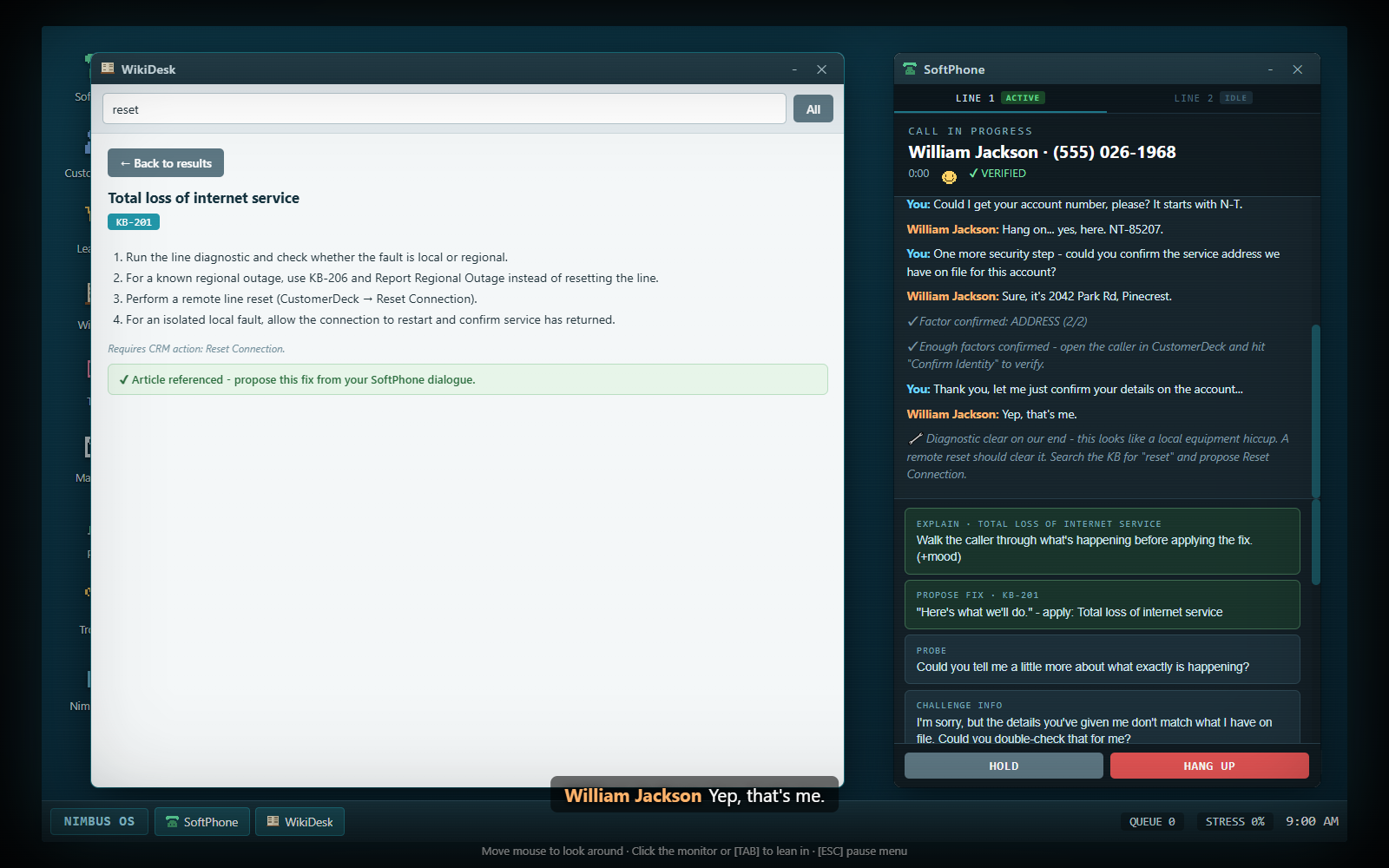
Stock article reference
The reference below includes normal gameplay fixes. Several WikiDesk entries have overlapping subjects; use the current diagnostic rather than treating a familiar article number as universally correct.
| Article | Use when the evidence indicates | Relevant completion |
|---|---|---|
| KB-201 — Total loss of internet service | Isolated local connection fault | Reset Connection |
| KB-202 — TV box frozen or stuck on boot screen | An online TV box has a hung process | Reset Connection |
| KB-203 — Slow speeds: data cap throttling | A real monthly allowance has been used | Explain the cap; an eligible plan upgrade is optional |
| KB-204 — Mobile: SIM replacement | An intermittently registering/worn SIM | Confirm matching SIM equipment, then Send Replacement SIM |
| KB-206 — Regional outage | Confirmed outage in the customer's area | Report Outage |
| KB-207 — Router hardware fault | Line is healthy, router does not respond | Confirm matching router, then Ship Replacement Router |
| KB-208 — Wi-Fi congestion or interference | Wired service is fine and Wi-Fi is the issue | Reset Connection |
| KB-209 — Persistent packet loss | Fault affects wired and wireless connections | Explain the line fault; this article's explanation is a resolution route |
| KB-210 — Tower congestion / area capacity | SIM registers normally but local capacity is faulty | Report Outage |
| KB-211 — Device-level mobile fault | SIM and tower are healthy; handset is faulty | Explain the manufacturer referral |
| KB-212 — Failed TV firmware update | Online box is stuck mid-update | Confirm equipment details, then Push Firmware Update |
| KB-213 — TV hardware fault | Box responds to no remote commands | Confirm matching TV box, then Ship Replacement TV Box |
| KB-214 — Incorrect roaming rate | Carrier-side roaming billing error | Issue Refund |
| KB-215 — Usage meter out of sync | Recorded usage does not match actual traffic | Reset Connection to resync |
| KB-216 — Stuck throttle flag | Old restriction remains despite low current usage | Clear Throttle Flag |
| KB-301 — Promotional rate expired | Expired introductory pricing, not a duplicate payment | Applicable explanation or loyalty offer; some callers present a direct Response menu |
| KB-302 — Duplicate charge | Duplicate/incorrect charge on the account | Issue Refund |
| KB-401 — Account locked / cannot log in | Legitimate login lockout after successful verification | Unlock Account |
| KB-402 — Email setup | Customer needs mail-app settings | Explain IMAP setup; no CRM action |
| KB-501 — Cancellation retention | Customer wants to leave | Apply Loyalty Offer |
| KB-502 — Moving home/service transfer | Service move or installation booking | Complete the address/signup step, then Schedule Technician |
| KB-503 — Plan change/renewal | Customer wants a tier change or renewal | Pick the tier in SoftPhone, then Change Plan |
| KB-612 — International roaming | Legitimate roaming usage, or an expired pack needing goodwill | Explain valid charges, or use the supported Apply Loyalty Offer route for an expired pack |
| KB-701 — Static IP lease lost | A business account's fixed reservation was overwritten | Reset Connection |
Articles about generic browser cache, manual router firmware, parental controls, voicemail and Wi-Fi settings can appear in searches. Some conversational call types use a Response menu instead of a KB/CRM sequence. Match what the caller asked rather than performing every procedure with a similar keyword.
The stock static-IP scenario enters the ordinary career pool from day four only after Technical Certification I. Seeing KB-701 in the library does not mean every new agent immediately receives those advanced calls. See career progression for certifications.
For the stock email setup, the fictional Nimbus settings are mail.nimbustel.example, IMAP port 993, SSL enabled, and the full email address as username. These are in-game support details, not a real mail service you need to configure on your computer.
Show the full diagnostic answer reference
The diagnostic result tells you which row applies. This table exposes the stock root-cause choices for players who want a direct solution reference.
| Call family | Result | Best-matching route |
|---|---|---|
| Internet down | Local connection fault | KB-201 + Reset Connection |
| Internet down | Area outage | KB-206 + Report Outage |
| Internet down | Router hardware failure | KB-207 + correct router confirmation + Ship Replacement Router |
| Slow speeds | Real data cap | KB-203 + explanation |
| Slow speeds | Wi-Fi-only congestion | KB-208 + Reset Connection |
| Slow speeds | Persistent packet loss | KB-209 + explanation |
| Mobile no signal | Worn SIM | KB-204 + correct SIM confirmation + Send Replacement SIM |
| Mobile no signal | Tower congestion | KB-210 + Report Outage |
| Mobile no signal | Handset fault | KB-211 + manufacturer-referral explanation |
| TV box frozen | Software/process hang | KB-202 + Reset Connection |
| TV box frozen | Failed update | KB-212 + equipment confirmation + Push Firmware Update |
| TV box frozen | Hardware failure | KB-213 + correct TV-box confirmation + Ship Replacement TV Box |
| Data-cap complaint | Genuine cap | KB-203 + explanation |
| Data-cap complaint | Metering error | KB-215 + Reset Connection |
| Data-cap complaint | Old throttle flag | KB-216 + Clear Throttle Flag |
| Roaming bill | Legitimate itemized usage | KB-612 + explanation |
| Roaming bill | Incorrect rate table | KB-214 + Issue Refund |
| Roaming bill | Pack expired partway through trip | KB-612 + Apply Loyalty Offer |
Equipment must match the account's plan
Physical replacements have an extra SoftPhone equipment choice before the CustomerDeck dispatch action is allowed. Open the account and read its current Plan. Choose the matching item from the Ship · … options; then run the appropriate CRM action.
| Current account plan | Replacement router | Replacement TV box | Replacement SIM |
|---|---|---|---|
| Basic 50 | Standard Dual-Band Router | Standard TV Box | Standard Physical SIM |
| Standard 150 | Standard Dual-Band Router | Standard TV Box | Standard Physical SIM |
| Fast 500 | Mesh Router System | 4K TV Box | eSIM Activation |
| Giga 1000 | Fiber ONT + Router Combo | 4K TV Box | eSIM Activation |
These are the game's fixed equipment pairings. Choosing a more expensive-looking item does not make it correct for a cheaper plan. A wrong choice costs a little caller mood and displays a mismatch, but leaves the picker available so you can correct it. It is not an automatic compliance strike and does not permanently prevent the proper shipment.
The correct selection confirms the equipment/shipping prerequisite and displays the address on file. It does not perform the shipment: finish with Ship Replacement Router, Send Replacement SIM or Ship Replacement TV Box on the verified record.
Firmware updates use the equipment-confirmation gate too. Some update-only flows show Confirm Equipment on File. The stock TV-box call family also supports a physical replacement, so its equipment picker can be shown even when the diagnostic points to firmware. Select the plan-matching TV box to satisfy the gate, then perform Push Firmware Update for the update result. Do not dispatch a box simply because you used its equipment-confirmation picker.
Moving home: the required order
- Gather the account number or legal name.
- Run the security check. If the mover cannot recall the old address, use the offered retry or date-of-birth/last-payment fallback.
- Click Confirm Identity with Caller in CustomerDeck after two factors.
- In SoftPhone, use Update Address. Read the confirmation that the record now contains the new address.
- Open KB-502 and explain/propose the service transfer.
- Use CustomerDeck → Schedule Technician.
- Finish the call and log Account in TickIt.
Trying to book the technician before Update Address produces a prerequisite warning and leaves the issue unresolved. An address used as a successful verification factor is the old on-file address; it is not the new service address. The dedicated Update Address dialogue collects and writes the change.
In an ordinary saved career the address change persists. Multiplayer and Night Shift use scratch state and do not rewrite a saved career's customer record. Community campaigns have their own save/content rules; see saves and troubleshooting.
New installation: signup before booking
A new-install caller has already begun signup and needs the visit booked. Their New Customer flag does not waive verification. After confirming identity, SoftPhone offers Sign Up · [tier] options. Pick the suitable plan. The system confirms the plan and service address.
Then use the relevant service-transfer/installation article and Schedule Technician. The booking button is blocked until that signup selection has been made. You do not manually create a second subscriber in Directory just to complete this call. The call already supplies the customer record; the signup dialogue is the required intake step.
The four stock tiers are:
| Tier | Monthly rate | In-game description |
|---|---|---|
| Basic 50 | $29.99 | 50 Mbps; browsing and one stream at a time |
| Standard 150 | $49.99 | 150 Mbps; comfortable for a small household |
| Fast 500 | $69.99 | 500 Mbps; multiple streams and working from home |
| Giga 1000 | $89.99 | 1000 Mbps and no data cap |
These dollar amounts are the fictional telecom plans and wallet economy. They are not purchases charged to you outside the game.
Plan change or renewal
This request has its own selection gate:
- Verify the customer and read the current Plan in CustomerDeck.
- Listen to whether they want more capacity, a lower bill or renewal.
- Pick Switch · [tier] in SoftPhone, or Renew · [current tier] to keep the same plan.
- Open KB-503 and use its relevant explain/propose route.
- Click CustomerDeck → Change Plan to complete the issue.
- Wrap up and log Account.
Selecting a tier updates the discussed plan/rate and unlocks Change Plan, but does not by itself resolve the call. The system describes a changed rate as effective next billing cycle; renewal keeps the existing rate. Choosing the current tier is valid and should not be mistaken for a missing upgrade option.
Optional sales and loyalty after a fix
Some resolved callers offer a plan-upgrade pitch. Only tiers above their current plan are offered, so a Giga 1000 customer has no higher tier to sell. Caller mood and the size of the jump affect acceptance. A declined pitch can hurt mood; a good technical resolution is often more valuable than forcing a sale onto every call.
Eligible loyal customers can receive Offer Loyalty Credit after the primary issue. It is an appreciation gesture, not a substitute for solving a duplicate-charge error or network failure. Avoid confusing it with cancellation retention or the cause-specific roaming goodwill route, where the loyalty action is part of the actual resolution.
Escalation and technician fallback
Escalate to Tier 2 is available as a generic active-case fallback, subject to the correct account and verification/lockout rules. Some scenarios also support a standalone technician fallback. These routes can complete service at lower solution quality and create unfinished follow-up work. Review open cases rather than assuming a handed-off issue can never return.
Do not keep clicking account buttons after resolution. Most are rejected as unnecessary; a few specifically supported goodwill actions remain possible. A green resolved state is your cue to perform any deliberate closing choice and end the conversation.
Common prerequisite warnings
| Warning | Correct next action |
|---|---|
| Not enough security factors | Return to SoftPhone and confirm another distinct factor |
| Action without identity verification | Confirm identity on the correct CustomerDeck record before trying again |
| Confirm shipping/equipment first | Read the plan and make the matching SoftPhone selection |
| Update the address before scheduling | Use Update Address after verifying the mover |
| Complete signup before scheduling | Pick a Sign Up tier for the new-install caller |
| Pick a plan tier before completing | Choose Switch/Renew, then Change Plan |
| Case already resolved | Finish the dialogue rather than applying another fix |
| Account locked | Escalate the relevant record or report genuine fraud |
For the conversation surrounding these procedures, return to handling calls. To add your own articles and scenarios, see the mod content reference.