
On Hold puts you at a Nimbus Telecom support desk. Your job is to listen to callers, find the right customer, verify their identity, work out what is wrong, explain or apply a suitable fix, and leave a usable ticket. You also have a wallet, stress, coworkers, reviews and an increasingly unpredictable office to manage. Good service matters; acting on the wrong account can hurt much more than taking a little extra time.
This manual describes the shipped 1.0.0 rules. Community packs can add their own callers, articles, objectives and stories. When playing an authored experience, read its description and objective panel as well as this manual.
Before the first shift
Start the installed game and choose Options from the title screen. You can change settings before creating a career. A keyboard and mouse are the clearest way to work the desktop: you will click dialogue choices, search records and move overlapping app windows. The desk camera follows your mouse while you are leaning back; there is no walking route to memorize.
Configure these four things first:
- Language: choose the language of the interface, the dialogue subtitles and the recorded dialogue independently.
- Audio: set a comfortable master and dialogue volume. Subtitles remain available when recordings are turned off.
- Video: check display mode and UI scale. Fullscreen Borderless fills the display; window-size choices apply to Windowed mode.
- Keybinds: check Lean in/out, Answer, Hold/resume and Sip coffee. The manual uses the default keys, but tutorial prompts display your current bindings.
Stock language choices are English, Chinese, French, Hindi, Spanish and German. You can, for example, use an English interface, German subtitles and French audio. Changing one choice does not change the other two. Valid community language packs can add choices; untranslated text falls back to English. Authored player names and community text may remain as written by their author.
The desktop and controls chapter explains every settings group and the work apps. To keep your first shift focused on learning, start with stock content or a simple mod profile rather than several unfamiliar campaign packs.
Create a career
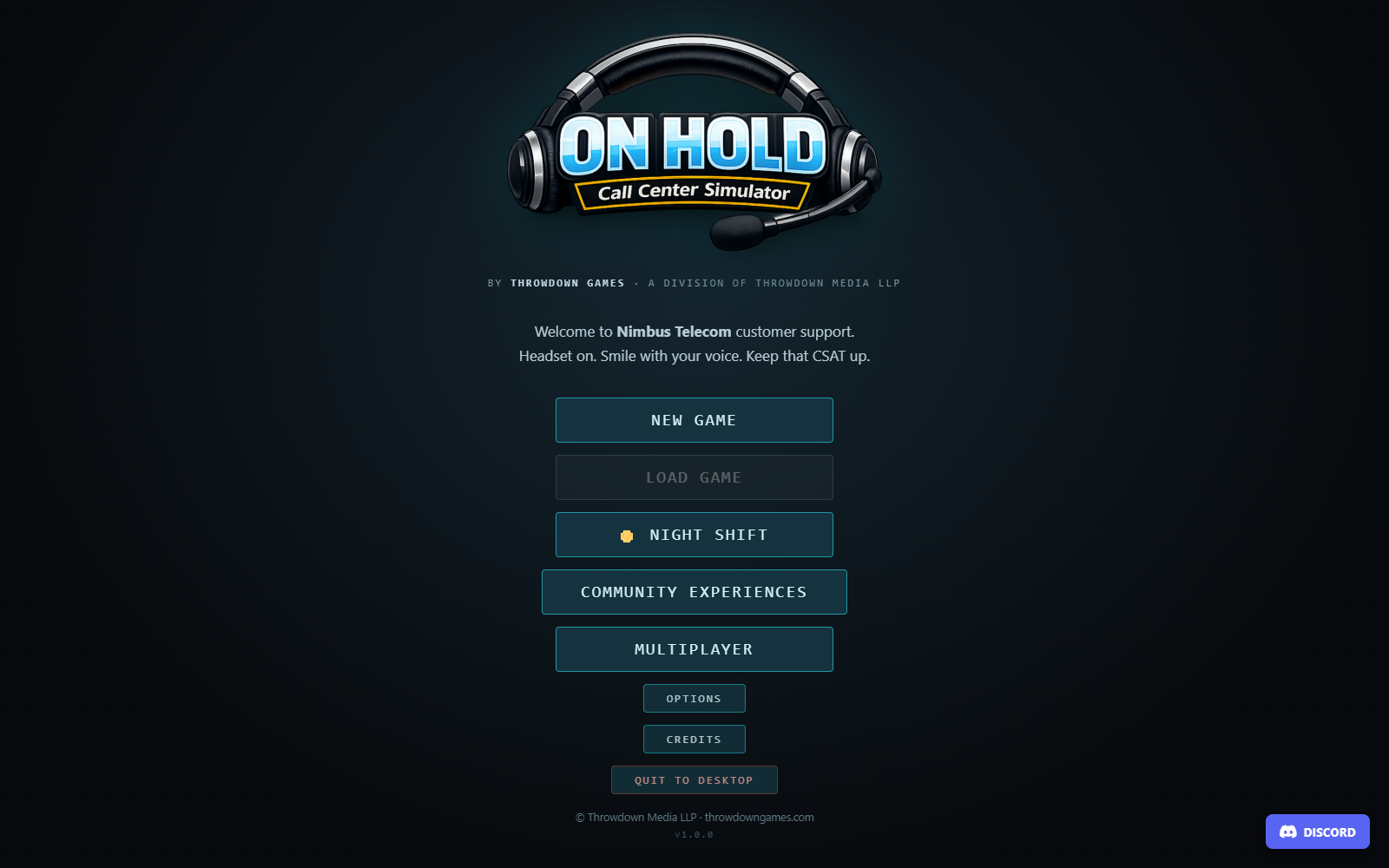
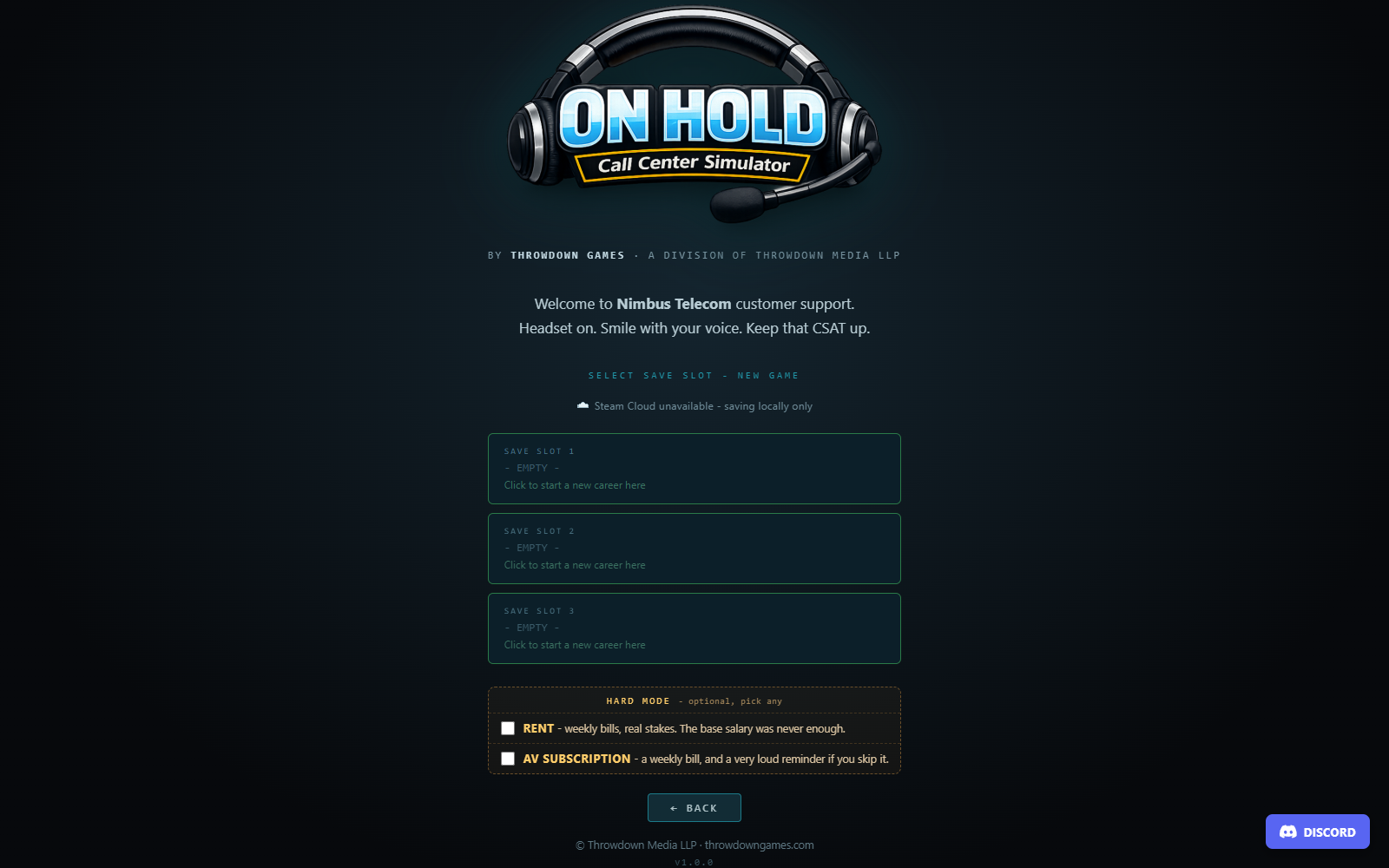
Choose New Game. There are three save slots. An empty slot starts a new career; clicking an occupied slot opens an overwrite confirmation. Read that confirmation carefully: choosing Overwrite replaces the existing career in that slot. Cancel leaves it alone.
The New Game screen also offers optional Hard Mode choices for rent and an antivirus subscription. You can choose either, both or neither. These are career-creation choices stored with that career, so decide before clicking its slot. Leaving them off is a reasonable way to learn the call workflow before adding weekly expenses.
An ordinary new career begins on day one with guided training. Night Shift, multiplayer and authored community experiences have their own start flow and do not run that ordinary career tutorial. Load Game becomes usable when a saved slot exists; its cards show the day, wallet and save date. See saves and troubleshooting for persistence, backups and Cloud behavior, and career progression for reviews and advancement.
Your first minutes at the desk
The training card introduces your cubicle and guides one call through the tools. Drag the card by its header if it covers a button you need. Steps with a continuation button wait for your click; practical steps advance when you perform the required action.
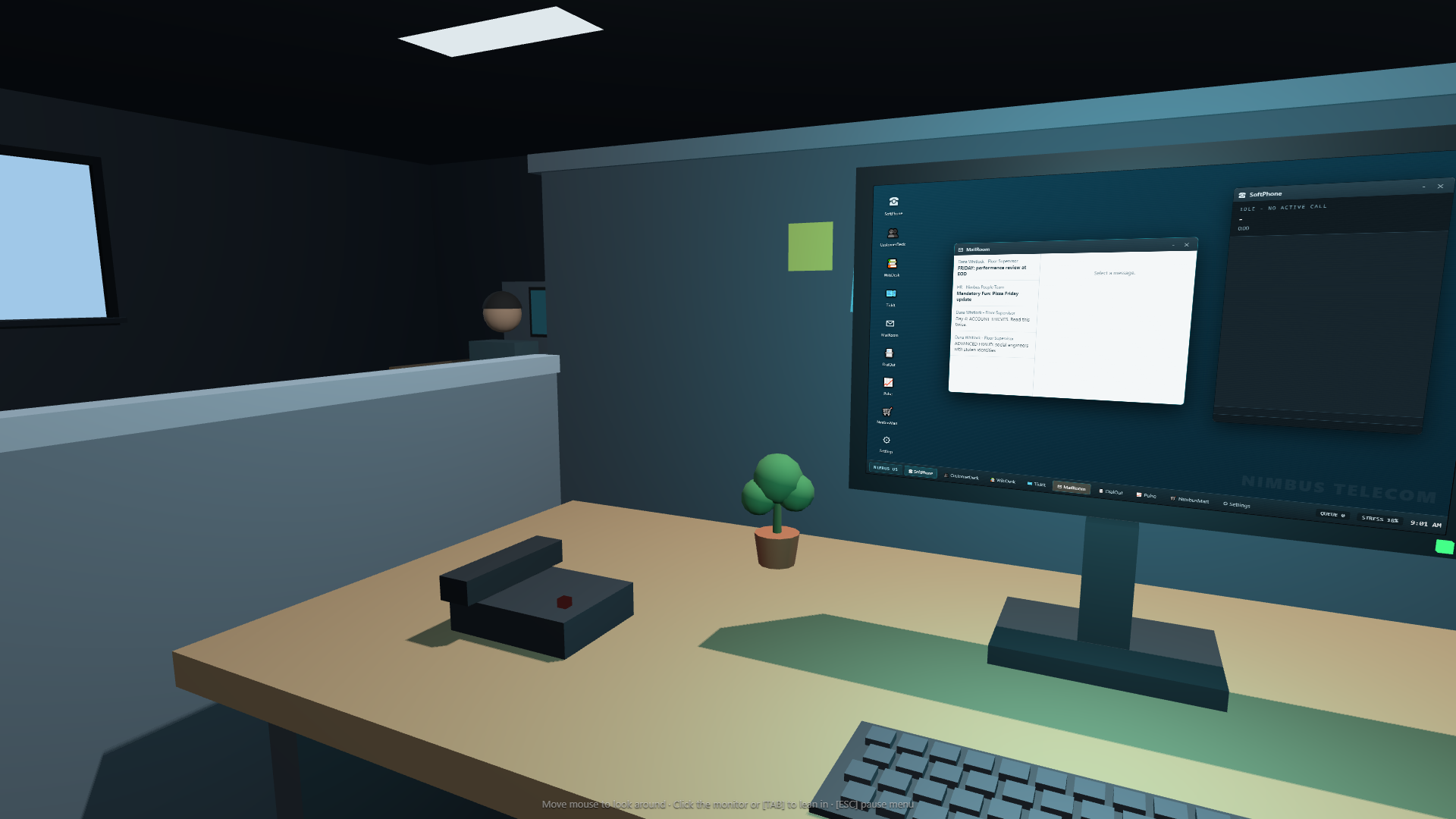
- Move the mouse to look around the office.
- Click the monitor or press Tab to lean in.
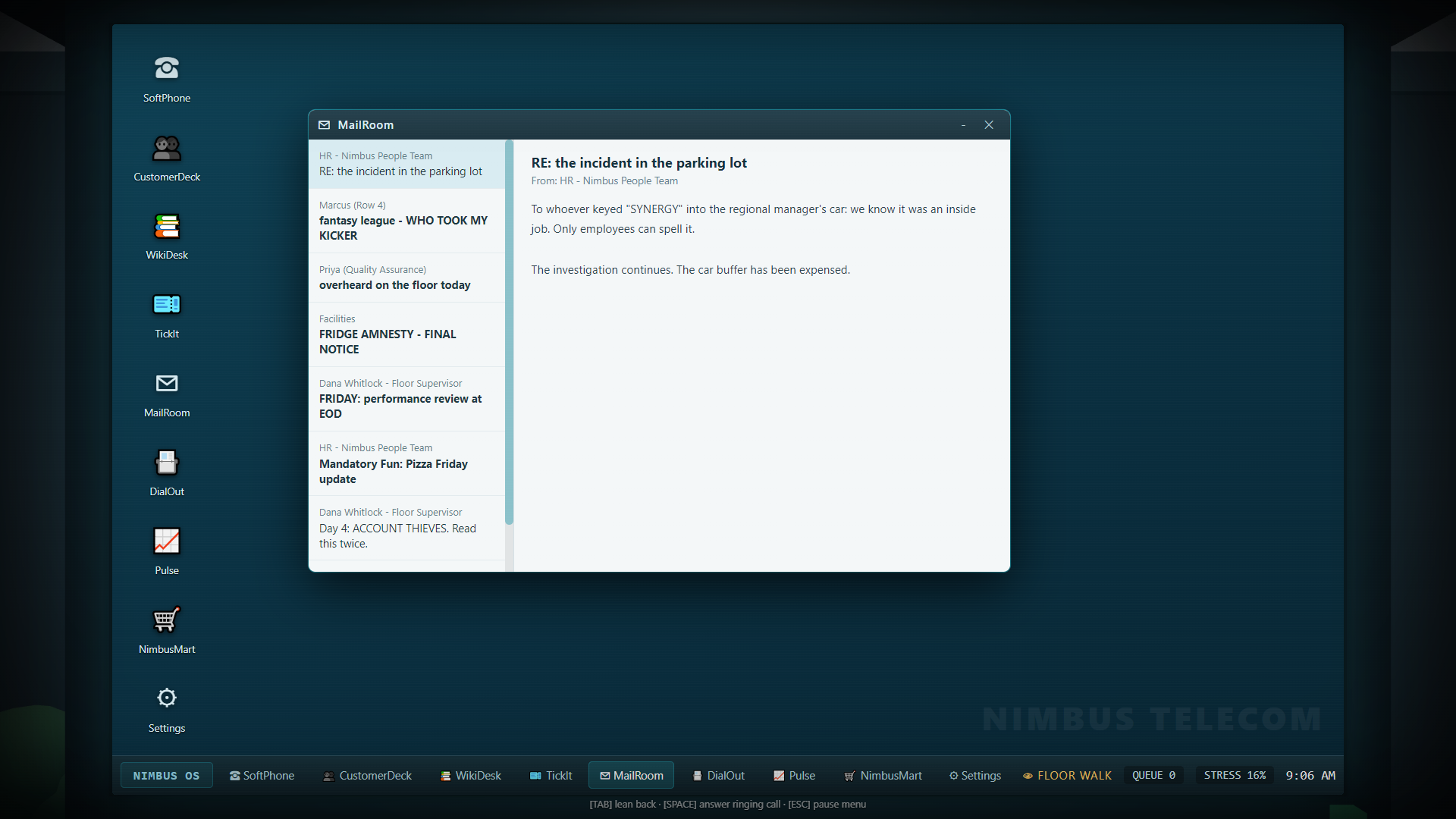
- Open MailRoom and click Rajeev's email to read it. Opening the app alone is not the same as reading a message.
- Wait for the first call and answer with Space or Answer in SoftPhone.
- Follow the dialogue choices and tutorial prompts. The caller's words are written into the transcript while they speak.
The first call is deliberately held back while the early training steps are being explained. If you take a long time finding the monitor or mail, a safety net routes the call after roughly a minute of active attention to those early steps. That is a cue to answer, not a requirement to restart the game. The email remains available afterward.
The complete first-call loop
These are the actions the training teaches. More complex calls vary the middle of the sequence, but this is the foundation:
| Step | What you do | Where you do it |
|---|---|---|
| Answer and greet | Answer the ring, then choose a greeting | SoftPhone, Line 1 |
| Gather details | Ask for identifying information and listen to the problem | SoftPhone dialogue |
| Find the record | Search the caller's name or account number, then open the matching record | CustomerDeck |
| Verify | Confirm two distinct factors on the line, then deliberately confirm identity on the record | SoftPhone and CustomerDeck |
| Diagnose | Read flags, probe if needed and run any available diagnostic | CustomerDeck and SoftPhone |
| Select the fix | Search for and open the relevant article | WikiDesk |
| Explain or execute | Use the matching dialogue option and any required account action | SoftPhone and CustomerDeck |
| Close | Finish the call through the dialogue options | SoftPhone |
| Document | Choose a suitable category and click Log Ticket | TickIt |
The tutorial's first example uses KB-201, Total loss of internet service, and Reset Connection. In later internet calls, run the line diagnostic before assuming the same fix applies: a regional outage and dead router call for different responses. The verification and diagnosis chapter explains the distinction.
The most easily missed step is Confirm Identity with Caller in CustomerDeck. Two factors do not verify the caller automatically. Wait for the green verification state before performing ordinary account actions.
Training after the first call
Training also demonstrates suspicious callers, pranks and a short system outage. Read each card: the correct approach to a non-customer call may be refusal or a polite redirect rather than an account search. A demonstration that goes badly may be retried, so another ring is part of training rather than evidence that your save is broken.
The final cards introduce the second phone line, breaks, coffee, purchases and career pressure. Click the final training button to hand the queue over to normal scheduling. You can skip training using its skip control; this releases the remaining day-one calls immediately. Skipping does not grant completed work or perform the tutorial actions for you.
A sensible first-shift rhythm
Keep SoftPhone, CustomerDeck and WikiDesk available without hiding one behind a full stack of windows. Use Review Account before a long lookup, or put the caller on hold for a short period. Verify once, diagnose the actual problem, perform the correct fix and close promptly. Open TickIt between calls to clear paperwork while the problem is still fresh.
Check MailRoom again when it flashes or a notification arrives. Some messages contain action buttons; simply reading those messages does not choose a response. Check Pulse when you want a readout of your current performance rather than judging the entire day by the last angry caller.
The career queue eventually runs out. If ordinary career tickets are still waiting, Shift Complete asks you to log them and use Clock Out. Once you clock out, the daily report records unfinished paperwork as mistakes. Finishing the phone call and finishing its record are separate jobs.
If you feel stuck
| What you see | First thing to check |
|---|---|
| No call during the opening tutorial | Complete the training card's requested step or continuation button; the early queue is intentionally held |
| Only dots where dialogue choices should be | Wait for the current spoken line to finish |
| Two factors shown but account actions complain | Open the correct CustomerDeck record and click Confirm Identity |
| No matching CustomerDeck result | Recheck the transcript, spelling, account digits and any corrected legal name |
| A green proposed fix did not finish the call | Read the system line: it may still require a CustomerDeck action |
| Shipping or technician action is blocked | Complete the equipment, address or signup step described in the solutions chapter |
| A service-unavailable panel covers an app | Wait for the office incident to restore the service; repeatedly clicking through it will not help |
| The shift is over but the report has not opened | Clear pending TickIt records, then use Clock Out |
For a complete worked call, continue with handling calls. For suspicious details or changing root causes, use verification and diagnosis.