This chapter covers the current desktop game's persistence and options. Career saves, community campaign saves, Night Shift records and multiplayer sessions have different lifetimes. Check the mode before relying on a Save button or assuming another PC has all your content.
The three save slots
The title screen's NEW GAME and LOAD GAME flows offer three slots. A slot displays its day, wallet and timestamp. Starting in an occupied slot requires the overwrite flow; deleting a save requires the delete confirmation. An empty slot can hold a new career or an eligible community campaign.
Use LOAD GAME to resume the intended slot. Do not start a new career in a slot merely because you wanted to continue yesterday's game. The slots are independent wallets and histories, but settings and some global records are shared within this installation's player data.
Ordinary careers autosave every three minutes while active, and progression/purchases also save through their own game actions. You can open Escape → Save Game → SAVE NOW for a manual save. Returning to the title menu or quitting through the game's confirmed controls invokes a save for eligible sessions. A crash or forced process termination does not guarantee that the most recent actions reached disk.
What an ordinary career save contains
Saved data includes your day, world seed, wallet, gear, certification tiers and pending training, apartment, desk items, weekly history, lifetime metrics, misconduct warnings, open cases, persistent customer progress and record edits, purchased leads, story decisions, coworker trust, morale and supervisor progress. It can also capture mid-shift metrics, stress, coffee stock, used recovery actions, inbox and remaining scheduled workload.
An active stock conversation is not a resumable recording of every dialogue turn. Reloading an ordinary mid-shift save restores career/shift progress and rebuilds the remaining work; it does not promise to reopen the exact spoken line, held prospect or diagnostic screen you were using. Finish and log a call before saving when you need a clean stopping point.
Community campaigns have additional authored story state and saved conversation choices. Their exact pack snapshot matters; see the mod compatibility section below. A campaign's own description can define progression that differs from an endless stock career.
What does not occupy a career slot
| Session or record | Persistence |
|---|---|
| Stock Night Shift run | Cannot be saved or resumed midway |
| Night Shift tokens, unlocks and bests | Separate local meta record, banked at a proper run end |
| Ordinary multiplayer shift | One-shot session; no save/resume |
| Community challenge or custom Night Shift | Separate local experience records rather than career-slot progression |
| Creator scratch playtest | No persistent saves or ordinary awards |
| Prestige and achievement viewer | Separate local records, with eligible Steam award integration |
| Audio/video/keybindings/language preferences | Separate persistent settings shared by the local installation |
Quitting a Night Shift forfeits the active night's unbanked tokens. Quitting multiplayer drops you out rather than creating a match save. Neither action overwrites an ordinary career slot.
Local files, backup and Steam Cloud
On Windows, the default local player folder is:
%APPDATA%\on-hold-call-center-simulator\
Press Windows + R, enter that path and open it. The saves directory contains save-1.json, save-2.json, save-3.json and manifest.json. Your folder may also contain local mods, frozen mod-snapshots, logs and Electron's settings/local-storage files. Development or test launches can use a different isolated data directory.
Local save writes use a temporary file and replacement. A valid previous save is kept as a .bak backup. If the current JSON is invalid, the loader can recover the valid backup. This is a last-valid-copy safeguard, not an unlimited version history or an undo button for a deliberate deletion. Deletions are recorded and propagated so an older machine should not resurrect a deleted career.
For a manual backup, close the game, copy the entire player folder to a dated backup location, and retain the mod sources and snapshot cache if you play campaigns. Copying only the saves directory backs up slot files but omits local settings, prestige, Night Shift meta and the content those saves may require. Do not edit or restore files while the game is actively writing them.
When Steam Cloud is enabled for both the game and account and available through the client, slot JSON and the manifest are mirrored to Cloud. The load/new-game screen reports Steam Cloud on or saving locally only. Offline play still uses local saves.
Cloud synchronization compares per-slot timestamps and reconciles the slot index. It does not merge two different playthroughs of the same slot into one combined career. Avoid progressing the same slot simultaneously on two PCs; finish the session and allow Steam to synchronize before opening it elsewhere.
Cloud career saves are not a promise that every local installation file travels with them. Local mod folders, cached snapshots, preferences, prestige and Night Shift meta are separate. Install the matching content on another PC and keep a manual backup if those local records matter to you. Steam Cloud availability also does not prove a particular cross-device round trip has finished.
Mod profiles and saved campaigns
The game records an ordered content snapshot with eligible saves. Pack identity, version and content hashes let the loader identify the content that created that game. It can use a previously frozen local snapshot when a Workshop item has been updated or unsubscribed.
An ordinary career with optional missing content may continue with warnings and dormant pack-owned state. A campaign whose required story pack is missing or incompatible must not be treated as a stock career; its exact required content needs to be found before continuation. Read the compatibility message rather than deleting the slot as your first remedy.
A frozen cache is local. A newly installed PC cannot use a snapshot that only exists on the old machine simply because the save slot came through Cloud. Reinstall the correct Workshop version where available, import the author's matching ZIP or copy your legitimate saved content backup. The loader checks actual data, so changing a manifest version label alone does not recreate the old pack.
See Installing mods and profiles for activation, ordering, dependencies and restoring the intended profile. Keep creator project backups and publication copies so old campaigns remain recoverable.
Audio and language
Open OPTIONS from the title or press Escape in a session. Audio has independent sliders for master volume, sound effects, UI sounds, office ambience and hold music. The voice section offers Voice acting, Dialogue volume and your agent's Female/Male voice selection. Caller actors are assigned by the game rather than that agent setting.
Subtitles/transcripts remain available when voice acting is disabled. A missing or failed recording falls back to timed dialogue so a call can still proceed. Some special scenarios are deliberately unvoiced; see the folded special-caller section.
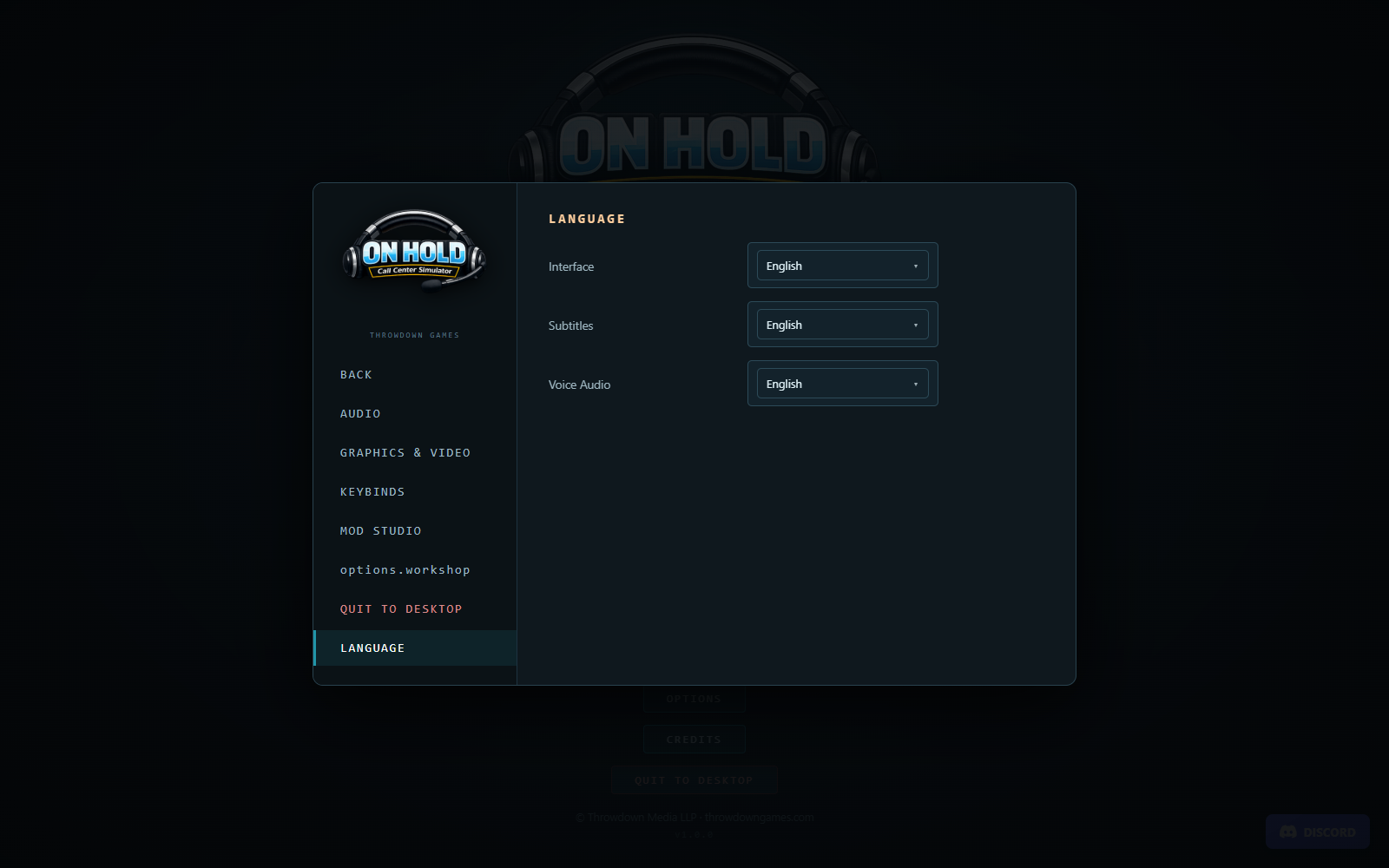
Language exposes three independent preferences:
| Preference | Changes |
|---|---|
| Interface | Menus, desktop chrome and other UI text |
| Subtitles | In-call dialogue/transcript text |
| Audio | Spoken voice-pack language |
Stock choices are English, Chinese, French, Hindi, Spanish and German. You can combine them, for example an English interface with German subtitles and French speech. Community language packs can add supported choices after discovery/activation. Missing community dictionary entries fall back to English; missing voice overrides can fall back to the stock recording or timed text.
Video, readability and motion
Video offers Windowed and Fullscreen Borderless. Borderless fills the display at its native resolution. Window size is selectable in Windowed mode, with presets from 1280×720 through 3840×2160, including ultrawide. A greyed window-size control in Borderless is expected.
UI Scale is separate from 3D rendering and includes Auto, 100%, 125%, 150%, 175% and 200%. Raise it when menus or HUD text are too small. Very high scaling on a small display can reduce the space available for panels; choose a value that keeps controls reachable.
Graphics controls include render scale from 50% to 150%, field of view from 45° to 75°, antialiasing, shadows, camera sway and CRT scanlines. Reduce render scale and disable shadows to lower rendering load. Turn off camera sway for a steadier viewpoint, and disable scanlines if they make the desktop harder to read. Changing FOV affects the view rather than automatically enlarging UI text.
The game uses visible transcripts, keyboard actions and configurable scale, but the current interface does not advertise a dedicated screen-reader mode or a global removal of every flashing/surreal event. Avoid assuming unsupported accessibility controls exist merely because a preference exists internally.
Keybindings
Under Keybinds, click the action's key and press the replacement. Escape cancels rebinding and remains the fixed pause/menu key. Assigning a key already used by another configurable action clears that old assignment; check all four controls afterward. RESET TO DEFAULTS restores lean, answer, hold and coffee to Tab, Space, H and C.
Typing in a search field, form or chat input takes precedence over ordinary game shortcuts. Leave the text input before assuming an answer key is broken. Desktop interaction and hold timing are detailed in Controls and desktop.
Troubleshooting reference
| Symptom | First checks |
|---|---|
| Phone is ringing but answer key does nothing | Leave the focused text/chat field; check the binding; confirm a real ringing call in SoftPhone |
| No callers arrive during training | Read the tutorial and complete its requested action; onboarding intentionally owns the first queue |
| No callers after the final outcome | Check TickIt for pending logs and the CLOCK OUT wrap-up control |
| Voice is silent | Check Voice acting, Dialogue and Master volume; check selected audio locale; distinguish authored silent calls from missing ordinary recordings |
| Menus are too small | Raise UI Scale; borderless resolution and render scale are different controls |
| Performance is poor | Reduce render scale, disable shadows, lower window size where applicable and close heavy background applications |
| CustomerDeck is unavailable | Read the IT/sabotage notice; temporary outages, maintenance and cascades have different durations and queue behavior |
| Stress will not fall below a number | Check unpaid-bill pressure, career burnout and active modifiers imposing a stress floor |
| A callback did not resolve the issue | It is follow-up work; check TickIt's Open cases and prepare for the return |
| Save appears missing | Verify the player folder, intended slot and account; check Cloud/local status and mod compatibility before creating over that slot |
| Save action unavailable | Night Shift, multiplayer, challenges and scratch playtests may intentionally have no career save |
| Second Chance did not forgive a Night Shift strike | Known current issue: wave initialization overwrites its extra waiver; rely on the counted-strike meter, not the unlock description |
| Mod disappeared or refuses activation | Check profile, source, validation, dependencies, conflicts, game version and required mode |
| Multiplayer never reaches two ready agents | Use different Steam accounts, compatible builds and a current lobby; satisfy the mod content panel first |
| Workshop download/upload fails | Check Steam is running, account access, item state and the reported agreement/download error; retry through the explicit UI action |
If ordinary recordings are consistently missing, verify the installed game files through Steam before changing or deleting saves. A mod's optional voice coverage can be incomplete without disabling the whole stock voice pack.
Reporting a reproducible problem
Record the game version, Windows/platform details, mode, save slot/day or Night Shift hour, what you clicked, what you expected and what happened. For modded sessions, include profile order, pack IDs/versions and the validation or content-match message. For multiplayer, include whether host or guest, mode/rules and the lobby's packet/roster diagnostic line.
The player log is at:
%APPDATA%\on-hold-call-center-simulator\logs\onhold.log
A rotated previous log can be named onhold.old.log. Keep a copy soon after the problem so later play does not replace the useful context. Include a screenshot or short reproduction sequence; share files only through the game's actual support channel and omit personal information you do not want public. Preserve your backup before attempting file-level recovery.