
A clean call combines good conversation with accurate account work. SoftPhone does not ask you to type a free-form reply: choose from the dialogue options it offers. Read the caller's actual problem, the option's text and the app's system feedback rather than clicking every green button you can find.
The reliable sequence is answer → greet → identify → verify → diagnose → fix → close → log. Some calls are simple conversations, some contain a second issue, and some should never receive account service at all.
The screenshots below follow one internet-loss call from diagnosis to paperwork. Its diagnostic identifies a local connection fault, so the example uses KB-201 → Reset Connection → Internet ticket. Use your own caller's result to choose the appropriate fix and ticket category.
1. Answer the ring
An inbound call appears on SoftPhone → Line 1. Use Answer, press Space with no text field selected, or click the desk phone while leaning back. The answer shortcut brings the inbound panel forward even if you were looking at Line 2. A live outbound prospect is held when you return to the inbound line.
A normal unanswered ring has a base timeout of about 26 seconds; upgrades can extend it. The queue is work waiting to reach your line, not a list of calls you must answer simultaneously. Drop Call rejects the ringing call and is not equivalent to a polite completed conversation.
Ordinary careers also offer two ways to route a ring before answering:
| Ringing-call control | What it does | Limit/cost |
|---|---|---|
| Transfer | A sufficiently friendly coworker takes the call | Up to two per day; costs coworker reputation |
| Tier 2 | Sends the unanswered call to the senior team | Once per day; $4 routing fee and some stress relief |
| Route to Teammate | Routes a ring to an eligible co-op teammate | Multiplayer co-op feature; see multiplayer |
Career Transfer needs a coworker with enough reputation to accept the favor. If nobody owes you enough, its feedback explains why. These ringing controls are different from Escalate to Tier 2 on an active CustomerDeck account.
2. Greet, then listen
Ordinary callers offer Warm, Standard and Rushed greetings. Warm improves the opening mood; Rushed starts with a mood cost. The caller's opener follows your greeting. Wait for it to finish and read its transcript before choosing the next response.
While a spoken exchange is underway, dialogue options temporarily disappear and dots can appear in their place. This is deliberate sequencing. Repeated clicks do not make the current sentence finish faster. You can search and arrange tools while listening, but wait for the relevant dialogue option to return before asking the next question.
The transcript contains You, the caller and system feedback. System lines record factors, diagnostics, required actions and mistakes. It is particularly useful when a customer reads out an account number, corrects a detail or explains a second problem. The inbound transcript is cleared when the call ends, so write its ticket promptly rather than assuming that conversation remains available forever.
3. Gather useful information
Ask for account details or a name through the offered verification options. Search those details in CustomerDeck and select the correct result. An exact account number is usually less ambiguous than a common name. Name search can still be valuable when the caller misreads digits or does not know their number.
Use Probe to ask for more detail about the problem. Stock normal-call probing is limited to two exchanges; the answers can distinguish a whole-account fault from a device-specific issue or clarify what the customer is actually requesting. Probing for symptoms is different from confirming a security factor.
Review Account is the safest way to buy lookup time when offered. It grants a 45-second grace window without ordinary dead-air penalties or impatience decay, and can be used twice per call. It is unavailable while a review window is already running or after those two uses. Use that time to search the record, inspect its flags or read WikiDesk rather than leaving the caller in silence without explanation.
4. Manage mood and waiting
SoftPhone shows the call timer, a mood indicator and verification progress. A happy greeting alone cannot rescue irrelevant actions or endless waiting. Useful empathy, accurate explanations and a correct fix improve the interaction; repetition, false accusations and unrelated account buttons make it worse.
| Option or delay | How to use it |
|---|---|
| Empathy | The first use helps most, the second helps less, and later repetition can annoy the caller |
| De-escalate | Offered for an irate caller in the right state; lets them vent before you continue |
| Review Account | Grants limited, explicit lookup time rather than unexplained silence |
| Hold / Resume | Useful for a short interruption; do not treat hold as an unlimited pause |
| Explain | Describes a relevant issue before an action; can improve mood |
| Push Back / Unload | Relieves your stress at the expense of professionalism, caller mood and complaint risk |
A caller left on hold loses mood as time passes. The base hold drain happens every ten seconds, and total hold time above 45 seconds can reduce the final satisfaction score. Re-engaging through a dialogue choice automatically takes an inbound caller off hold. H or the Resume control also resumes them.
Unexplained dead air begins to hurt after about 20 seconds of silence during an unresolved active call. It can trigger a caller complaint line and a mood loss. Time spent speaking, the Review Account grace window and hold have their own handling. Once a case is resolved, the ordinary dead-air timer is suppressed, but unnecessarily long total handle time can still affect the score.
Caller mood can fall far enough that they hang up. Keep lookup time purposeful. H cannot toggle during a spoken line, so use it after the exchange finishes rather than assuming a ignored press means hold is active.
5. Verify before acting
Normal account work requires two confirmed factors and a separate Confirm Identity with Caller click on the matching CustomerDeck record. A factor count of 2/2 is not the final verified state. Use the full verification guide for account-number callers, no-number callers, mistakes and lockouts.
Reading an article or running the offered technical diagnostic is informational. Clicking Reset Connection, Issue Refund, Unlock Account or another account action is consequential. Performing an ordinary action before verification, on a different customer or without an active customer call can produce a compliance strike.
Flag as Fraud and the narrow no-account Schedule Callback flow are specific exceptions; they are not permission to skip verification on a normal service request.
6. Diagnose and resolve
Check flags and any available diagnostic in SoftPhone, then search WikiDesk with words from the actual result. Open the article itself. If it is relevant to this scenario, SoftPhone offers an associated explanation or proposed fix. An article left open from the previous caller may be unrelated and produce no useful option.
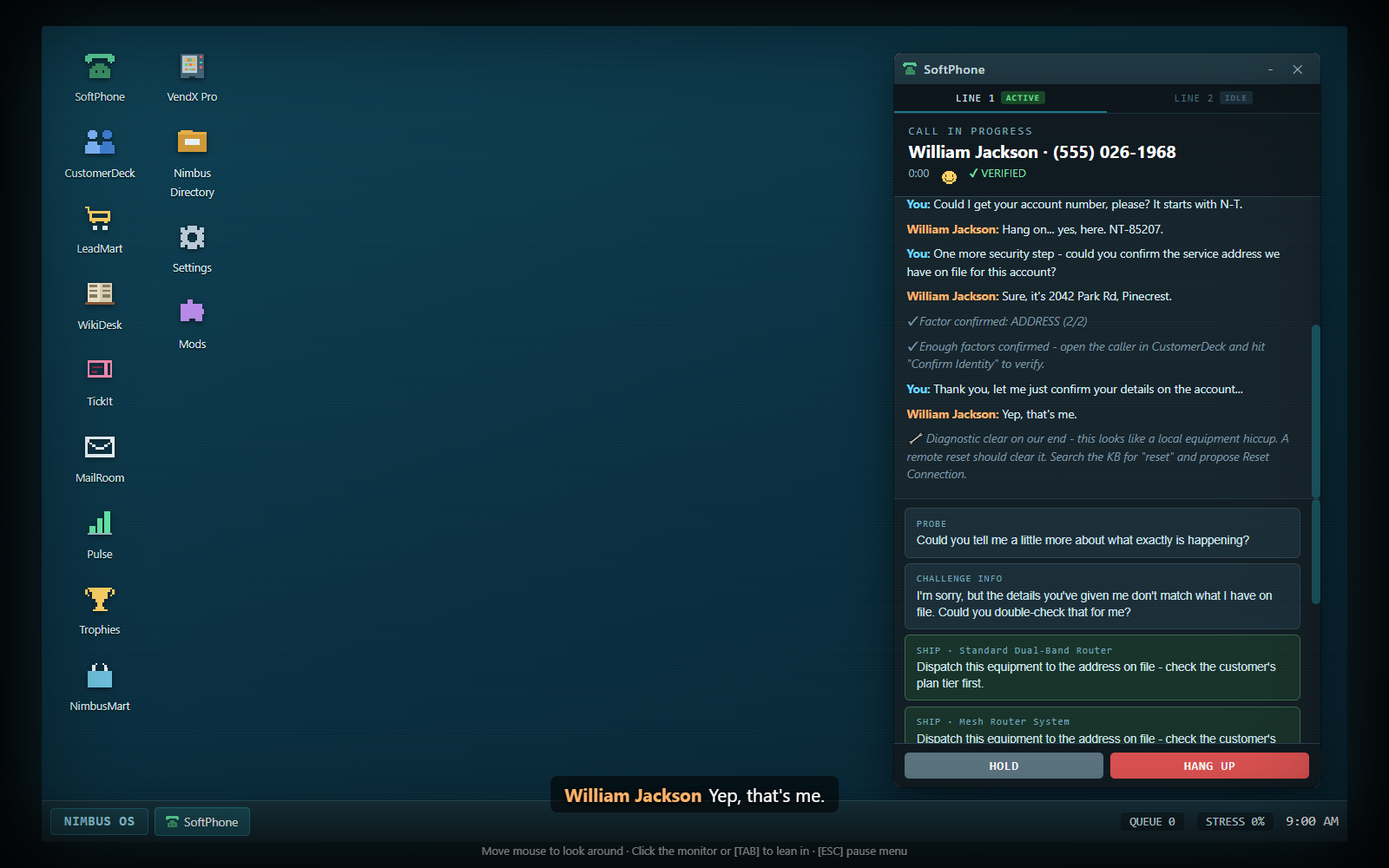
There are three main completion patterns:
- Explanation only: an appropriate Explain dialogue option resolves an informational issue; no account-action button is required.
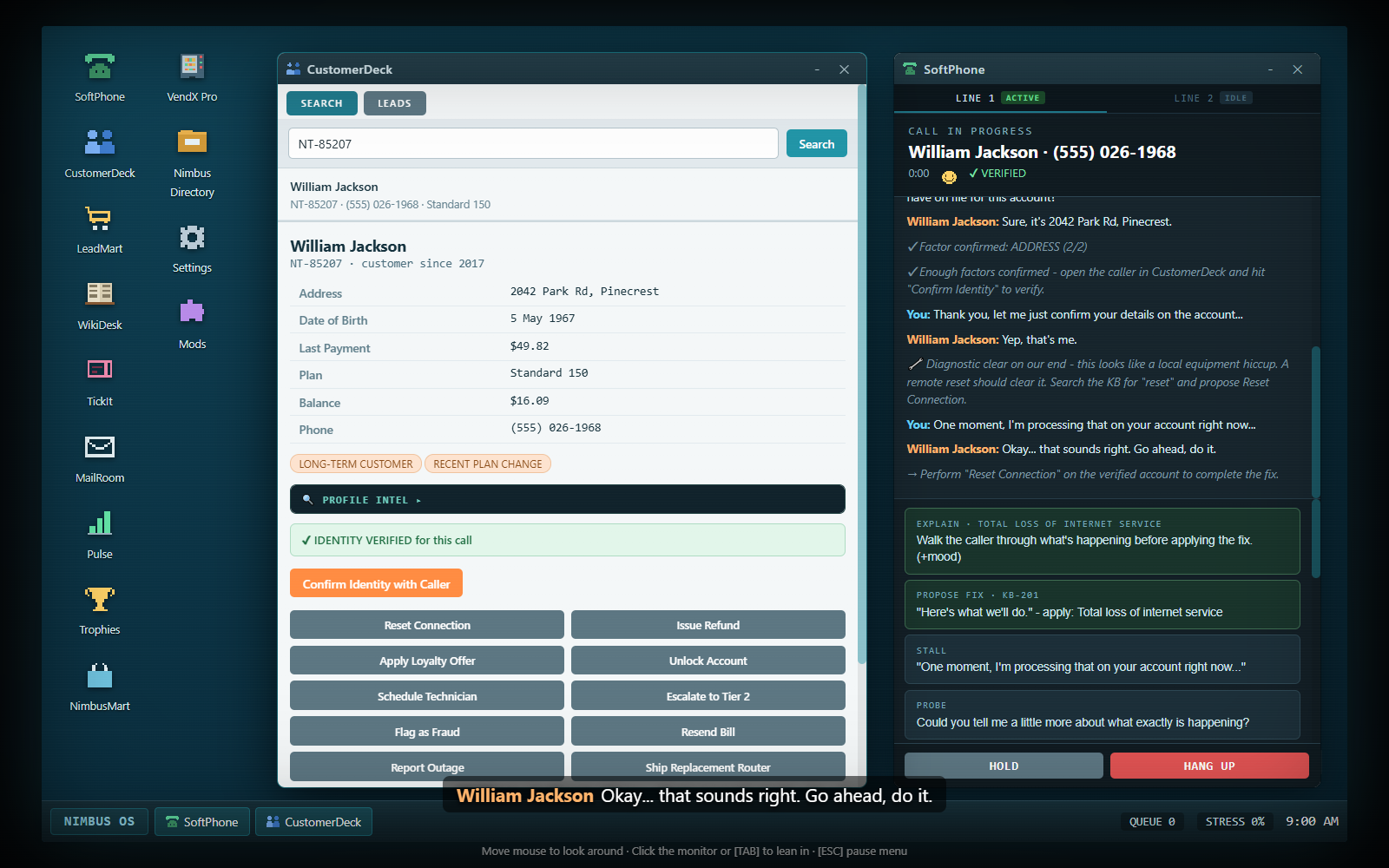
- Explain/propose, then act: SoftPhone's proposal records the agreed fix, and a system line tells you which CustomerDeck action completes it.
- Act with the matching article referenced: a valid CustomerDeck action can complete the fix directly when the correct article is open. If you acted before opening it, use Confirm Fix with Caller when it appears.
An explanation before an action may improve mood, but it is not a universal extra click required after every valid fix. Propose Fix is not the same as actually executing a refund, shipment or reset. Read the system feedback to find the unfinished part.
Some scenarios offer a plain Response menu rather than the ordinary verify-and-act route. Choose the response that addresses the request. There is no correctness highlight on those answers. A fitting response can resolve the conversation; an off-topic reply annoys the caller and counts as mishandling. Do not go hunting for an account action when the conversation is asking for an explanation.
7. Finish the whole conversation
After resolution, Anything Else? offers a closing check. Eligible loyal customers can also receive a loyalty-credit offer. Some scenarios allow a plan-upgrade pitch; that is optional and can fail, so it should not replace fixing the original issue. Use End Call in the dialogue to close cleanly when you are done.
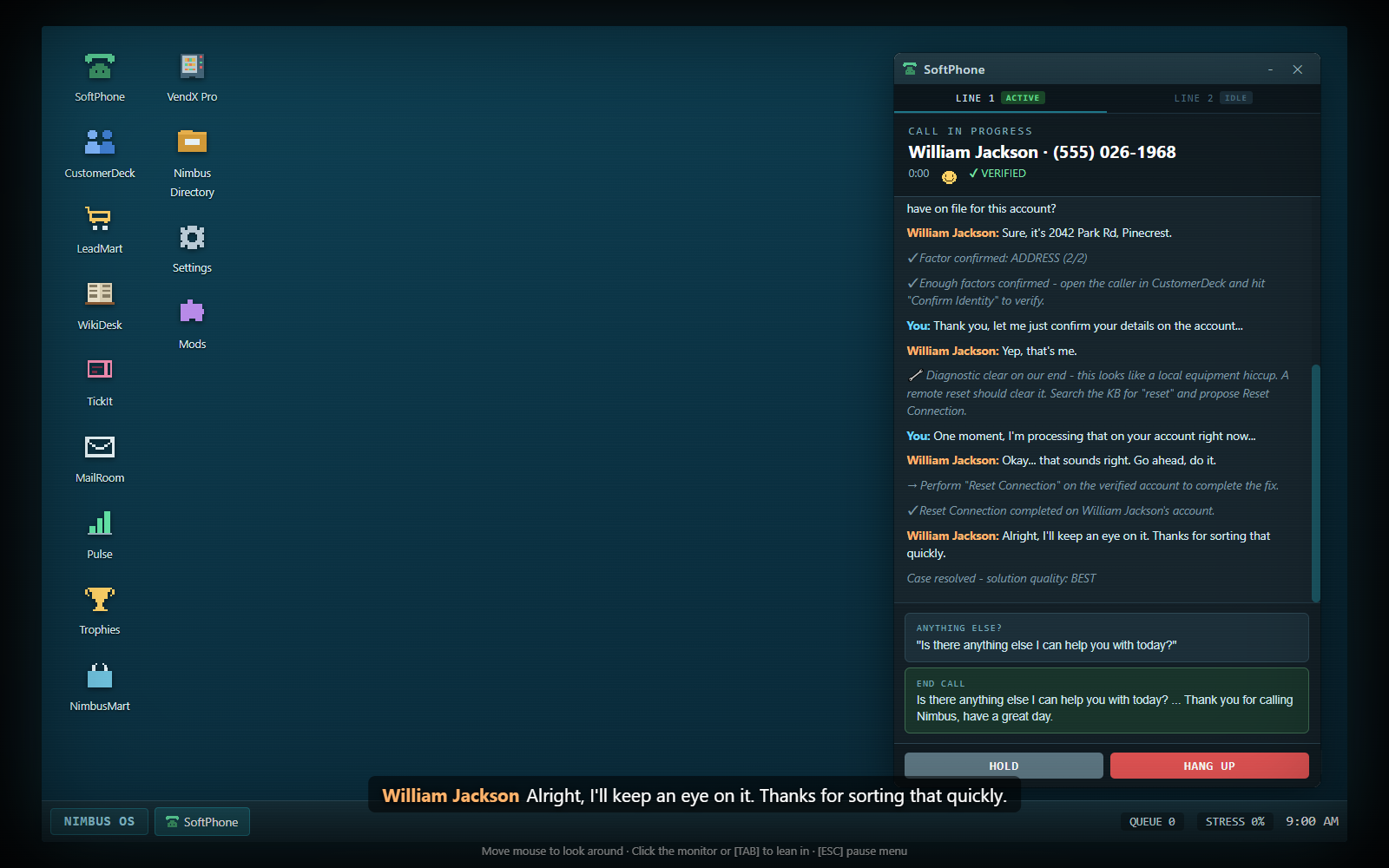
Hang Up is an emergency/manual termination control. Its first click arms a Sure? confirmation for a short interval; the second confirms. On an unresolved ordinary customer call, hanging up is a poor result. A normal dialogue wrap-up is the more reliable way to finish service.
Later callers may raise a second, unrelated issue after the first is fixed. Read the new opener. Identity verification carries over, but the second issue needs its own diagnosis, article and fix. Previous action completion and the first proposed fix do not automatically solve it. A compound call receives a wider handle-time budget, so prioritize accuracy over rushing its second half.
8. Log the ticket
Open TickIt. For each pending call, select a category and click Log Ticket. The categories are Internet, Billing, Account, TV, Mobile, Technical, Security and Other. Correct categorization pays a $3 bonus; the wrong category records a mistake and earns no category bonus. A compound record can accept either of its expected issue categories.
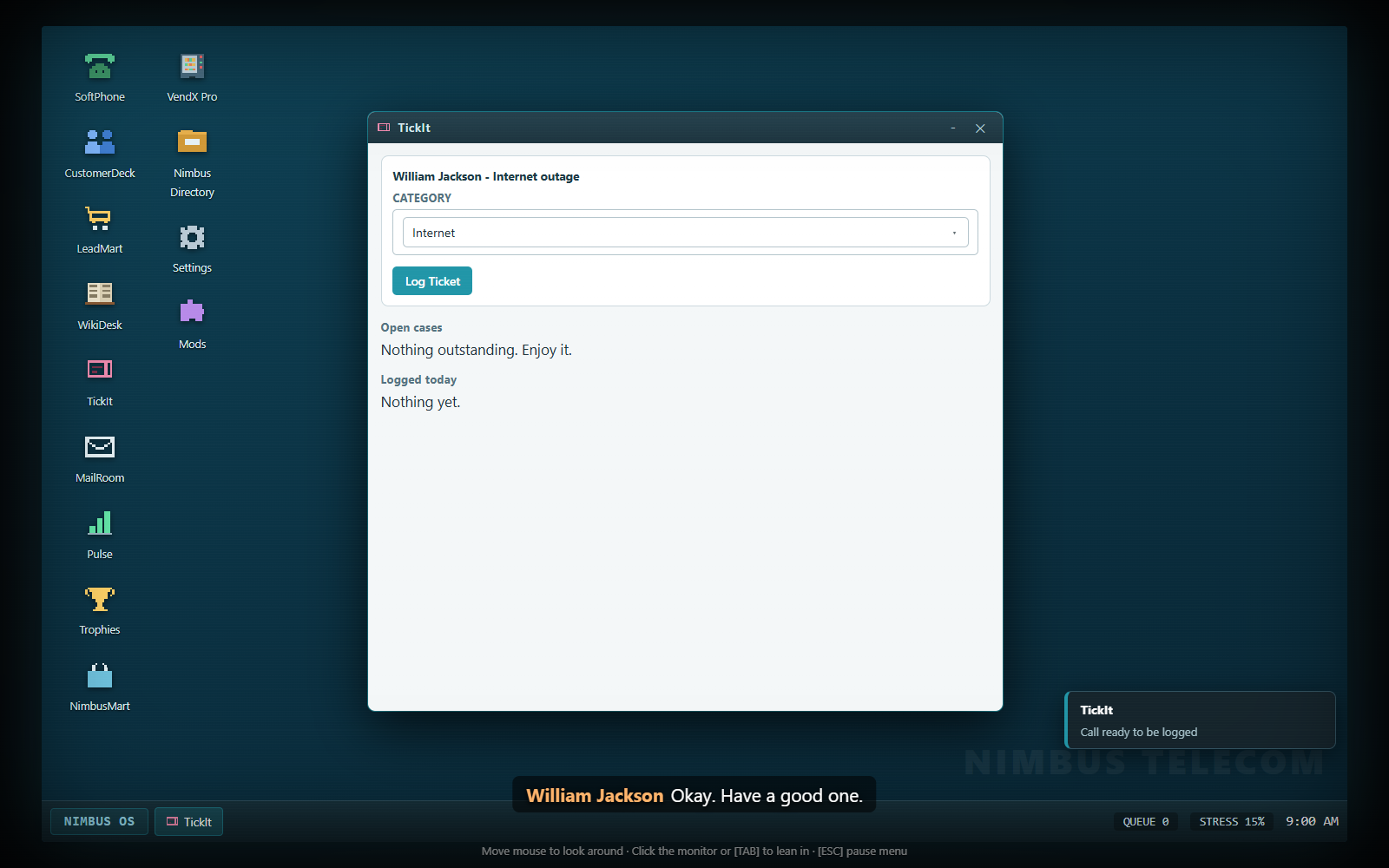
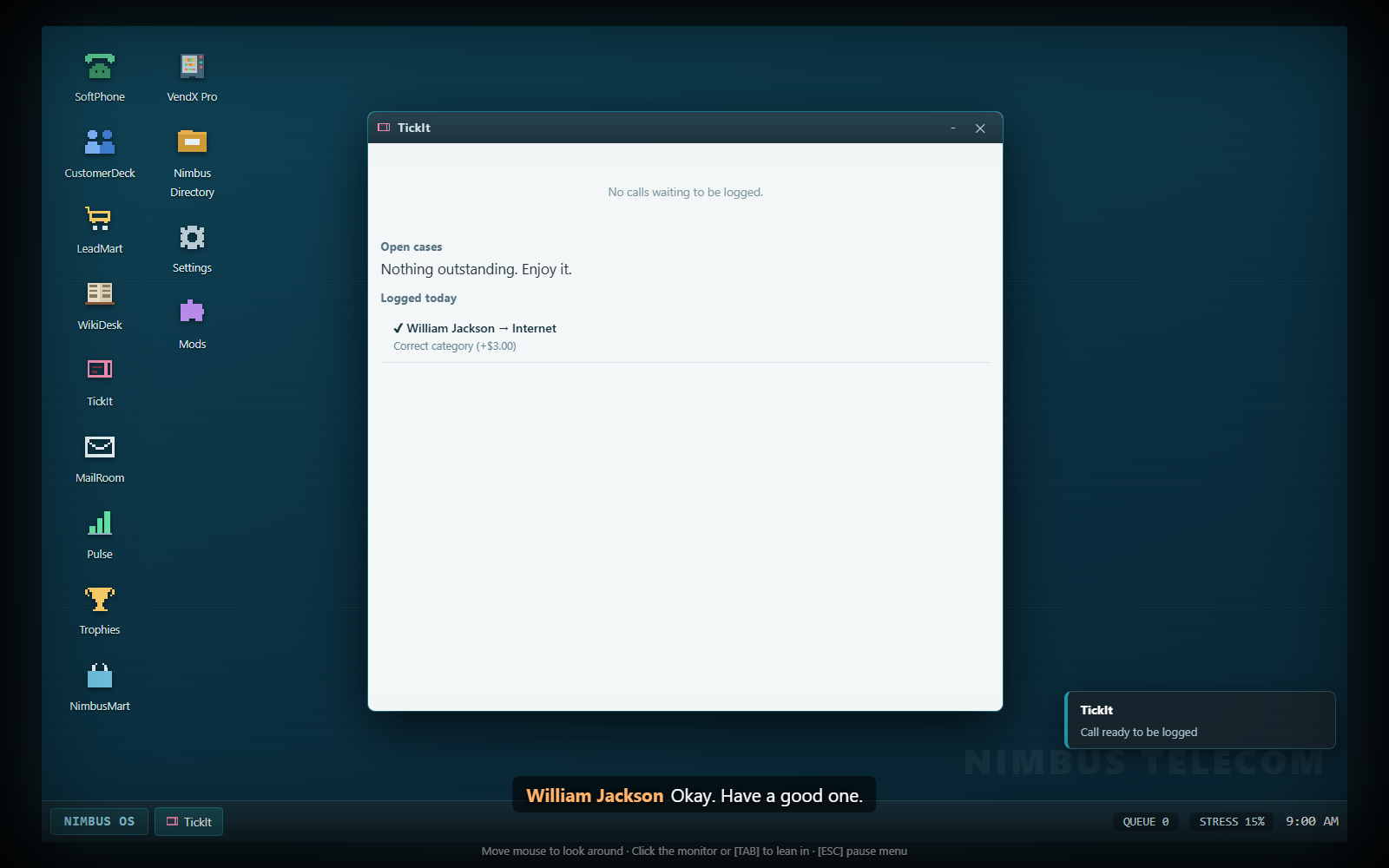
TickIt's Open Cases section is a separate list of unfinished business that may return later. Logging a completed call is not the same as resolving every follow-up listed there. See cases, characters and office events.
At the end of an ordinary career shift, pending records trigger the paperwork/Clock Out stage. You can finish categorizing them before opening the report. Clocking out with work still pending affects the report, so use the quiet moment to clear it. Separate run modes can end automatically and should not be expected to wait for career paperwork.
A worked duplicate-charge call
- Answer and choose an appropriate greeting.
- Listen for the duplicate-payment complaint; do not confuse it with an expired promotional price.
- Collect the caller's account number and a matching security factor.
- Search CustomerDeck, open the right account and click Confirm Identity with Caller.
- Inspect the duplicate-charge flag and open KB-302 in WikiDesk.
- Explain/propose the refund in SoftPhone, then use CustomerDeck → Issue Refund. Alternatively, with the correct article open, the valid refund action can complete the fix directly.
- Read the resolved state, finish the conversation and open TickIt.
- Log it under Billing.
For every shipment, mover, installation or plan-change gate, use solutions, equipment and plans. For pressure outside the conversation, use money, stress and home.