Your desk has two practical views: lean back to interact with the office, and lean in to operate Nimbus OS on the monitor. Switching view is normal during a shift. Looking away from the screen is not a pause; the phone and queue can keep moving.
Default keyboard controls
| Key | Action | Conditions and useful details |
|---|---|---|
| Tab | Lean in or lean back | Works as the desk-view toggle; clicking the monitor also leans in |
| Space | Answer the inbound call | Answers a ringing Line 1 call and brings its panel into view; it does not dial a lead |
| H | Hold or resume the inbound caller | Requires an active Line 1 call; wait for a spoken line to finish before toggling |
| C | Sip coffee | Lean back first so you can reach the mug; clicking the mug is an alternative |
| Esc | Open or close the options/pause menu | Fixed binding; it also returns title subscreens to the main title menu |
| Enter | Submit a CustomerDeck search | Use while the search field is selected |
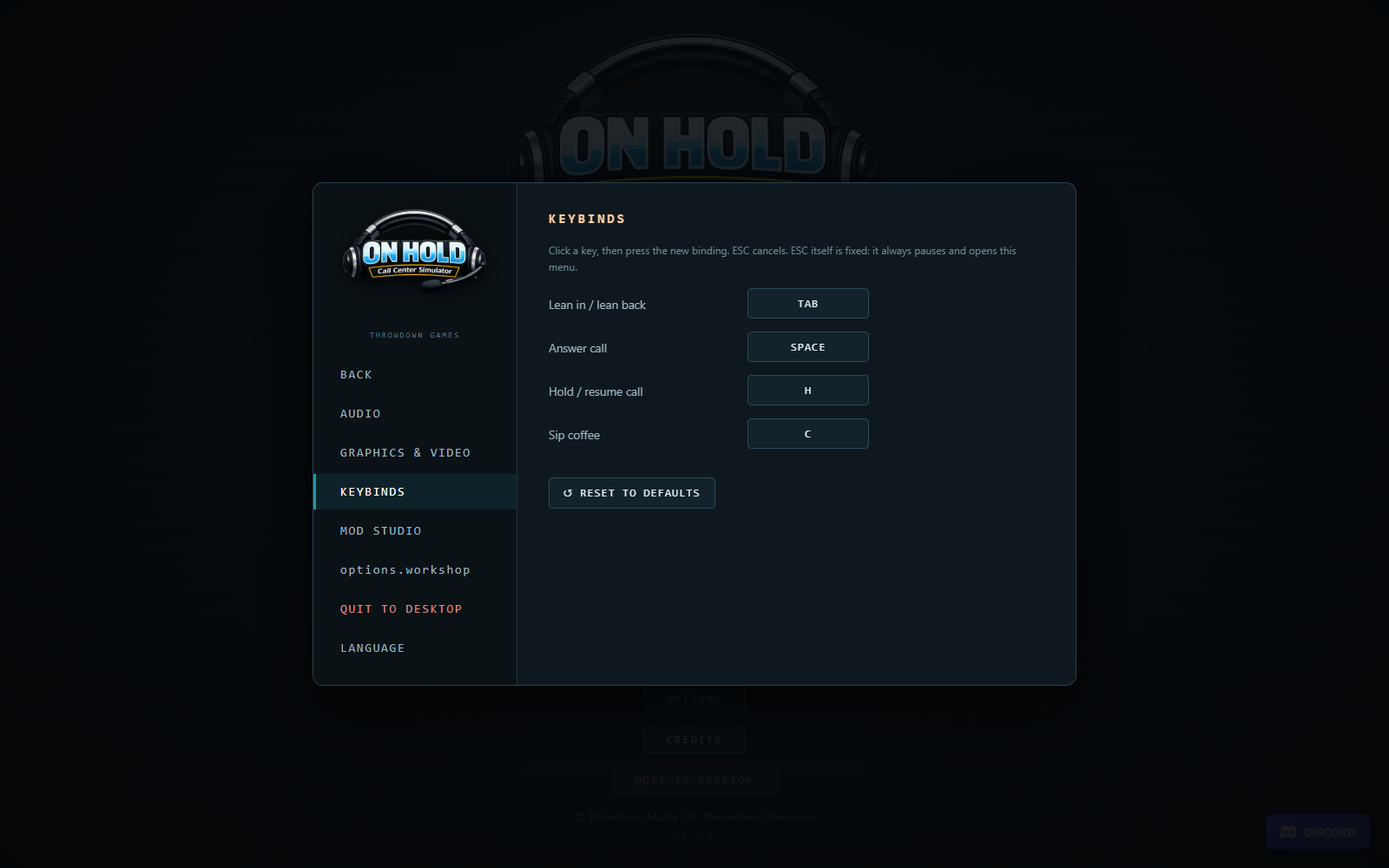
Answer, hold and coffee shortcuts are suppressed while you are typing into an input, text area or selection control. If pressing Space writes a space into a search field, click outside the field or use SoftPhone's Answer button. Tab is specifically handled as the desk toggle, so use the mouse when you need to select an app field.
Change the four configurable bindings through Options → Keybinds. Click the existing key, then press the replacement. Esc cancels capture and cannot be reassigned. Assigning a key already used by another action removes that other assignment: check all four rows afterward. Reset to Defaults restores the initial bindings.
Mouse controls around the desk
While leaning back, move the pointer to look across the cubicle. Hovering an interactive object shows a tooltip; clicking performs its action. The monitor, desk phone, mug, plant, noticeboard and break-room machine are useful places to inspect. Some other objects become interactive as the office changes.
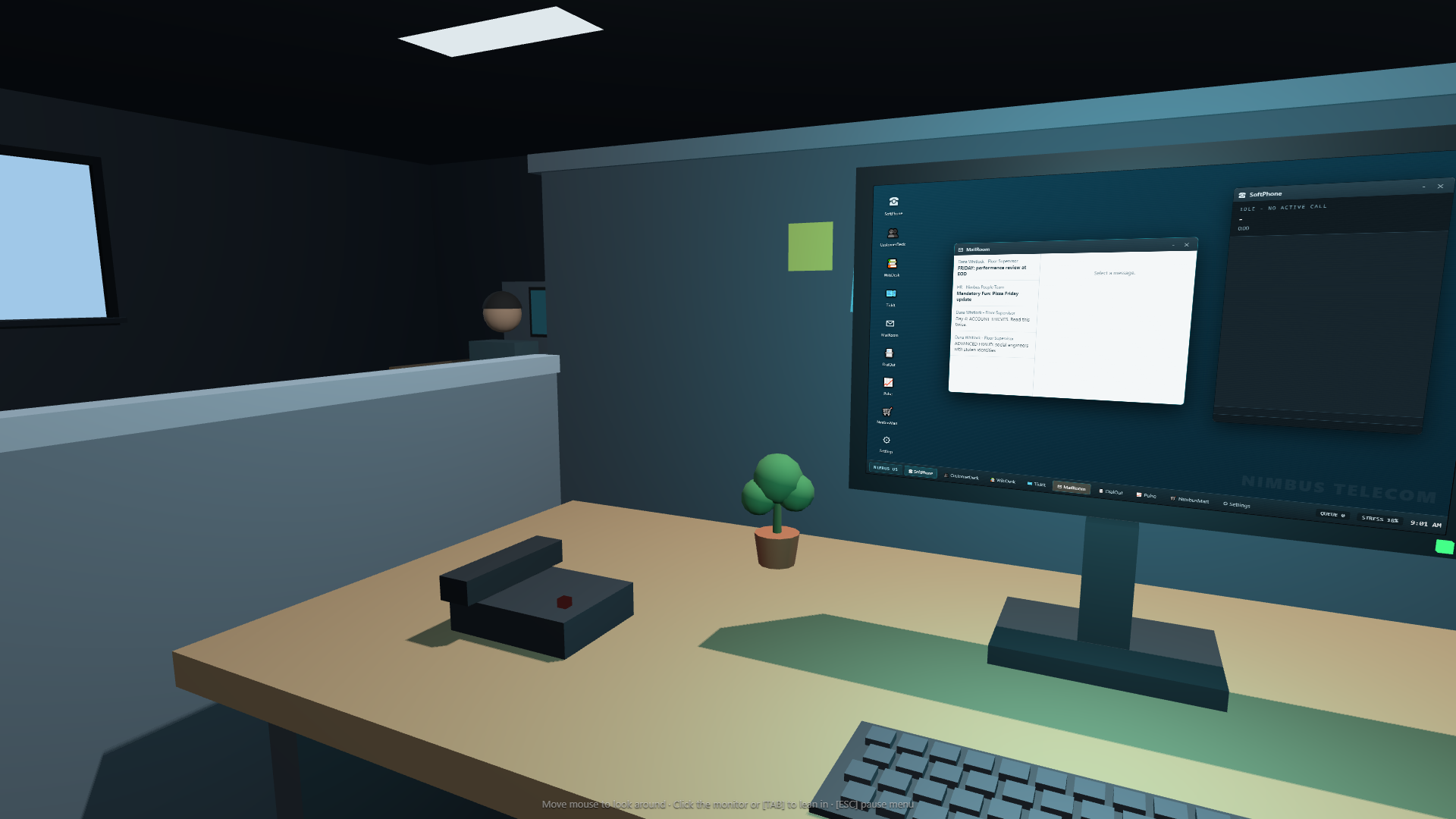
| Object | What a click does |
|---|---|
| Monitor | Lean in to Nimbus OS |
| Desk phone | Answer the currently ringing inbound call; an idle phone has no call to answer |
| Coffee mug | Use the coffee action |
| Coffee machine | Uses the coffee/refill interaction |
| Fernando Jr., the plant | Water the plant |
| Noticeboard/sticky-note area | Open the board to read its notes |
| Vending machine | Open VendX Pro |
| Printer | Interact with the printer when there is a fixable problem |
Close notes and the board with their close button or Esc. If a desk object will not react, check whether you are leaning in, the camera is transitioning, a refill animation is underway or a note overlay is still open. The office view is a seated workstation; the important work tools open through the monitor rather than requiring you to walk to another desk.
Operating Nimbus OS
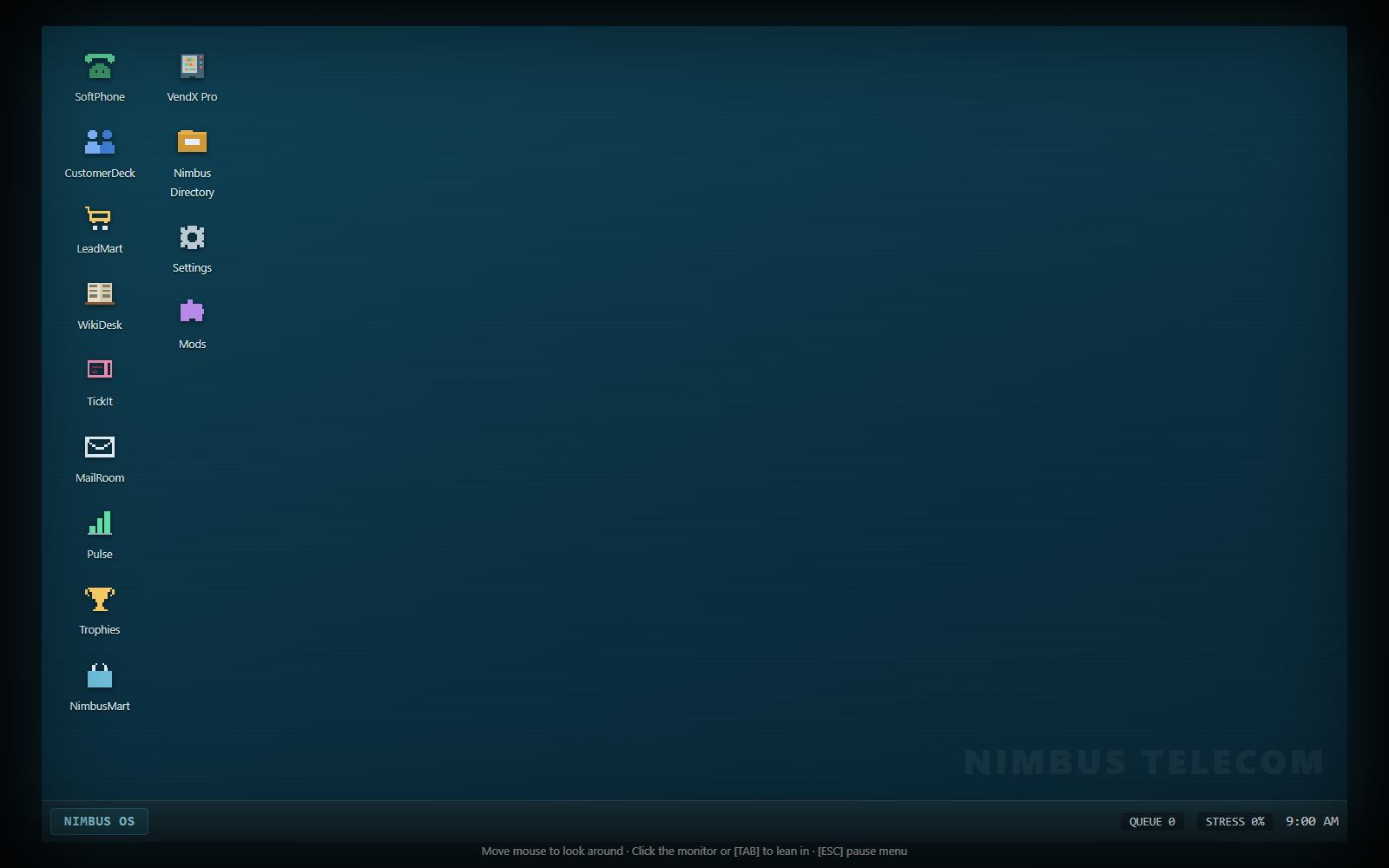
Click a desktop icon once to open its app. Double-clicking also works. Drag a window by its title bar to reposition it, and click a window to bring it to the front. Keep the top bar reachable so you can move an overlapping window out of the way.
Both – and × hide an app window. Reopen it from its desktop icon. A taskbar app button can bring its window forward or hide the currently focused window. These controls organize the simulated desktop; closing SoftPhone's window does not hang up the caller, and closing CustomerDeck does not cancel an account action already performed.
Notifications can open the relevant app when clicked. The taskbar shows queue count, stress and the office clock. Stress changes color at higher values, so it is a useful quick check when your attention is on the desktop. An app with Service Unavailable cannot be used until the temporary incident restores it.
App reference
| App | Main purpose | When to use it |
|---|---|---|
| SoftPhone | Inbound dialogue, call state, transcript and outbound calls | During every call; Line 1 is inbound, Line 2 is outbound |
| CustomerDeck | Search accounts, inspect flags, confirm identity and perform account actions | Before acting on a customer's account |
| WikiDesk | Search and read support articles | When matching symptoms or diagnostic results to a fix |
| TickIt | Categorize completed calls and inspect open follow-up cases | Between calls and before Clock Out |
| MailRoom | Read messages and select available message actions | At the start of the day and when mail arrives |
| Pulse | View live performance and career readouts | To monitor CSAT, resolutions, earnings and strikes |
| Trophies | View the achievement board and local mod trophies | To inspect goals and earned awards |
| Nimbus Directory | Search the wider subscriber database, including filters and profile details | When a broad record search or prospect research is useful |
| LeadMart | Buy prospect packs for the outbound lead book | Before expanding your cold-call list |
| NimbusMart | Buy workstation upgrades | When you have money to improve the desk or tools |
| VendX Pro | Buy consumables from the vending stock | For the available short-term effects during a shift |
| Settings | Open the game's options menu | To adjust presentation, sound and bindings |
| Mods | Inspect installed content and loader notices | To diagnose an enabled pack or upcoming profile change |
CustomerDeck's normal search needs at least two characters and shows a short list of matching results. Search does not mean select: click the result to open the account. Nimbus Directory provides the larger search-and-filter view. Neither app verifies a customer merely because their record is visible.
WikiDesk searches its titles, keywords and article text as you type. A search of fewer than two characters shows the broad list. All clears the search. Click an article to reference it for SoftPhone; the results list by itself is not an opened article. The article can stay referenced across calls, so always check that its subject still matches the current caller.
Language settings
Options → Language has three independent selectors:
- Interface language changes menus, training instructions and stock app presentation.
- Subtitle language changes in-call dialogue text.
- Audio language chooses the language of the recordings.
Choose any combination. The six stock languages are English, Chinese, French, Hindi, Spanish and German. Enabled community packs can extend text and audio coverage. Missing translations fall back to English; missing or unusable recordings can continue as timed subtitles, so dialogue progress does not require every custom line to have a recording. See installing mod profiles and languages, audio and office packs for community content.
Audio settings
Adjust Master, Sound effects, UI, Ambience and Music separately. Voice acting enables or disables spoken dialogue, Dialogue volume controls its level, and Your (agent) voice selects Female or Male. Caller voices are selected for the caller automatically rather than by that agent selector. Subtitles are always available.
If you hear office ambience but cannot hear conversation, check Voice acting, Dialogue volume and Master. If clicks are loud but the office is quiet, inspect UI and Ambience independently. The voice pack status in the audio panel describes installed recordings rather than a gameplay requirement.
Video and readability settings
Fullscreen Borderless uses the display's native area. Windowed lets you choose a window size, from 1280 × 720 through 3840 × 2160, including the 3440 × 1440 ultrawide choice. Window size is disabled while borderless mode is selected.
UI scale offers Auto, 100%, 125%, 150%, 175% and 200%. Increase it when menus and the HUD are hard to read on a high-resolution display. UI scale and Render scale do different jobs: UI scale changes interface sizing, while render scale changes the 3D scene's drawing resolution. Lowering render scale may help a struggling GPU without requiring smaller interface text.
The graphics panel also offers Field of view, Antialiasing, Shadows, Camera sway (breathing) and CRT scanlines on the PC screen. Field of view ranges from 45° to 75°. Camera sway and scanlines are optional visual effects; disabling them can make a long desktop session more comfortable. Graphics changes apply to the live scene when one is running and are retained for later starts.
Pausing and leaving
During an ordinary shift, Esc opens the pause menu and freezes the current game while you work in that menu. Resume returns to the shift. Saving and leaving a career use separate menu entries; read saves and troubleshooting before relying on an unfinished call being restored exactly as it was.
Mod Studio and Workshop are title-menu activities. They are available from title-screen Options rather than the middle of an active shift. Return to the title when you want to author a pack, manage its publication or make changes intended for the next content load.
A multiplayer session has additional timing and synchronization considerations. Read multiplayer before assuming that your local menu freezes another player's game.